


Making A Custom View in Obsidian
December 2, 2025
You will learn how to create an Obsidian plugin that opens a new leaf with a custom HTML view.
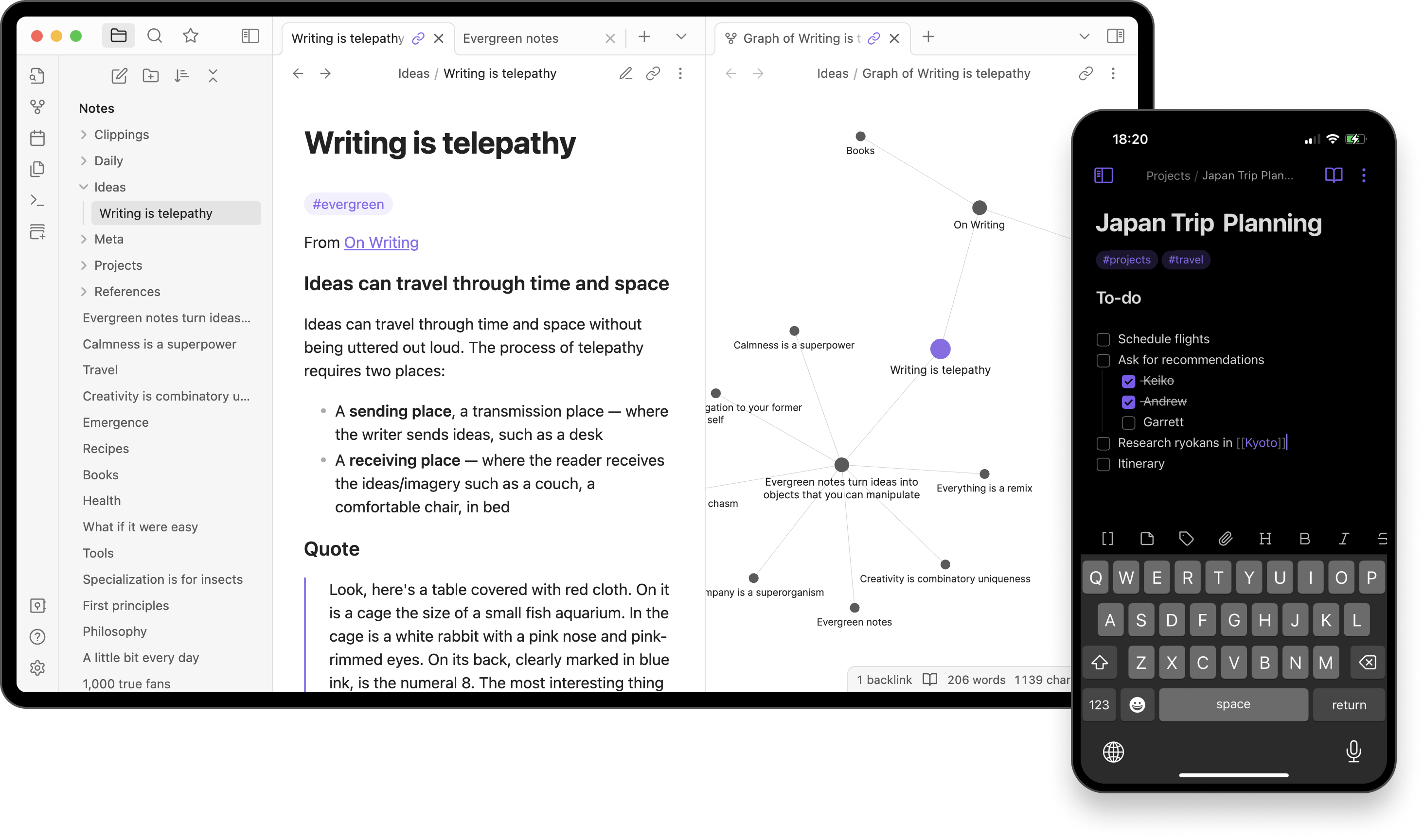
What you will need:
- Obsidian - A note taking application with a powerful plugin API.
- VsCode - A popular code editor (any code editor will do)
- Node.js - Runtime environment for Javascript
- Obsidian Developer Documentation - Learn about the obsidian API.
- Plugin Guidelines - Plugin Guidelines
How to Create an Obsidian Plugin That Adds a Custom HTML Leaf
Obsidian is a powerful note-taking app that allows developers to extend its functionality via plugins. In this tutorial, we’ll walk through creating a simple Obsidian plugin that adds a custom HTML leaf to your workspace. This leaf can include buttons, inputs, and even run Obsidian tasks like showing notifications.
We’ll use TypeScript and the Obsidian API to make this plugin.
Step 1: Plugin Overview
The plugin we’ll build:
- Registers a custom view called
SimpleHtmlView - Adds a command to open this view in a new leaf
- Displays a simple HTML UI with an input box and a button
- Clicking the button triggers an Obsidian task using the
NoticeAPI
Here’s the final code:
import { Plugin, ItemView, WorkspaceLeaf, Notice } from "obsidian";

const VIEW_TYPE = "simple-html-view";

export default class SimpleHtmlPlugin extends Plugin {
//When the plugin loads
  async onload() {
    //register a view of type VIEW_TYPE into a new leaf
    this.registerView(VIEW_TYPE, (leaf) => new SimpleHtmlView(leaf));

    //add a command that will open the view
    this.addCommand({
      id: "open-simple-html-view",
      name: "Open Simple HTML View",
      callback: () => this.openView()
    });

    // Prevent crashes when Obsidian layout isn't ready
    // when the workspace layout is ready...
    this.app.workspace.onLayoutReady(() => {
      console.log("Layout ready");
      // Optional: auto-open the view here
      // this.openView();
    });
  }

  onunload() {
    //when the plugin is unloaded detach the lef from the workspace
    this.app.workspace.detachLeavesOfType(VIEW_TYPE);
  }

  async openView() {
    // Get the leaf
    const leaf = this.app.workspace.getLeaf(false); // Safe way to get a leaf
    // set the view of the leaf to the VIEW_TYPE view and make it active
    await leaf.setViewState({
      type: VIEW_TYPE,
      active: true
    });

    // then reveal the leaf
    this.app.workspace.revealLeaf(leaf);
  }
}

class SimpleHtmlView extends ItemView {
  constructor(leaf: WorkspaceLeaf) {
    super(leaf);
  }

  getViewType(): string {
    return VIEW_TYPE;
  }

  getDisplayText(): string {
    return "Simple HTML View";
  }

  //When the view is opened...
  async onOpen() {
    const container = this.contentEl; // Use contentEl, not containerEl.children[1]
    // clear the container (so old stuff isn't there?)
    container.empty();

	// set the inner html of the element
    container.innerHTML = `
      <div style="padding:16px;">
        <h2>Obsidian Action Button</h2>
        <label>Label</label><br/>
        <input id="txt" placeholder="Type something..." />
        <br><br>
        <button id="btn">Run Obsidian Task</button>
        <p id="out"></p>
      </div>
    `;

    //query selector to get elements from the HTML
    const btn = container.querySelector("#btn") as HTMLButtonElement;
    const txt = container.querySelector("#txt") as HTMLInputElement;
    const out = container.querySelector("#out") as HTMLParagraphElement;

    // Run a task when button is clicked
    btn.onclick = () => {
      new Notice(`You typed: ${txt.value || "nothing"}`);
      out.textContent = "Notification sent at " + new Date().toLocaleTimeString();
    };
  }

  async onClose() {}
}
Step 2: Understanding the Code
1. Registering a Custom View
this.registerView(VIEW_TYPE, (leaf) => new SimpleHtmlView(leaf));VIEW_TYPEis a unique identifier for your view.SimpleHtmlViewis the class that handles the content of the leaf.
2. Adding a Command
this.addCommand({
  id: "open-simple-html-view",
  name: "Open Simple HTML View",
  callback: () => this.openView()
});- This command appears in the Command Palette.
- Calling
openView()opens the custom leaf.
3. Handling Layout Ready
this.app.workspace.onLayoutReady(() => {
  console.log("Layout ready");
});- Prevents errors that happen if you try to create a leaf before Obsidian finishes initializing.
- Avoids the classic
Cannot read properties of null (reading 'children')error.
4. Opening a Leaf Safely
const leaf = this.app.workspace.getLeaf(false);
await leaf.setViewState({
  type: VIEW_TYPE,
  active: true
});
this.app.workspace.revealLeaf(leaf);getLeaf(false)returns a safe leaf without assuming a side or location.revealLeaf()ensures the new leaf becomes visible.
5. Creating the HTML View
const container = this.contentEl;
container.innerHTML = `
  <div style="padding:16px;">
    <h2>Obsidian Action Button</h2>
    <label>Label</label><br/>
    <input id="txt" placeholder="Type something..." />
    <br><br>
    <button id="btn">Run Obsidian Task</button>
    <p id="out"></p>
  </div>
`;- Use
contentElto safely inject content into the leaf. - Avoid
containerEl.children[1]— this is unstable in newer Obsidian versions.
6. Handling Button Clicks
btn.onclick = () => {
  new Notice(`You typed: ${txt.value || "nothing"}`);
  out.textContent = "Notification sent at " + new Date().toLocaleTimeString();
};Noticeis an Obsidian API to show a temporary notification.- You can replace this with any Obsidian API call: creating files, opening notes, running commands, etc.
Step 3: Folder Structure and Manifest
Your plugin folder should look like this:
.obsidian/plugins/simple-html-view/
├── src/
│   └── main.ts
├── manifest.json
└── styles.css (optional)
Example manifest.json:
{
  "id": "simple-html-view",
  "name": "Simple HTML View",
  "version": "0.0.1",
  "minAppVersion": "1.5.0",
  "description": "A plugin that adds a custom HTML leaf",
  "author": "Your Name",
  "main": "dist/main.js",
  "css": "dist/styles.css",
  "isDesktopOnly": false
}
Step 4: Build and Enable the Plugin
- Build the plugin using your preferred build tool. I use the commands
npm installto install the dependencies and thennpm run devto build. - Make sure the compiled
main.jsis indist/as referenced inmanifest.json. - Enable the plugin in Obsidian settings.
- Open the Command Palette → type
Open Simple HTML View→ your custom leaf appears.
Note
You can add a style.css file in your plugin folder to style the html elements
#btn{
    background-color: blue;
    color: white
}
Step 5: Next Steps
Once you have the basic leaf working, you can:
- Add more complex UI elements
- Run other Obsidian API tasks (create notes, read active files, open modals)
- Use frameworks like Vue or React to power your leaf
- Apply TailwindCSS for styling
This is a great foundation for building interactive, custom views in Obsidian.
✅ Summary
- Use
registerView()to define your custom leaf. - Always use
contentElto inject HTML safely. - Open leaves after the workspace layout is ready.
- Use
Noticeor other Obsidian API functions to trigger actions from your UI.
You now have a fully working Obsidian plugin that adds a new HTML leaf with interactive elements!